ENTRENCHED WW1 Controls
Keyboard, mouse, touch, and controller inputs so you fight the enemy — not the UI.
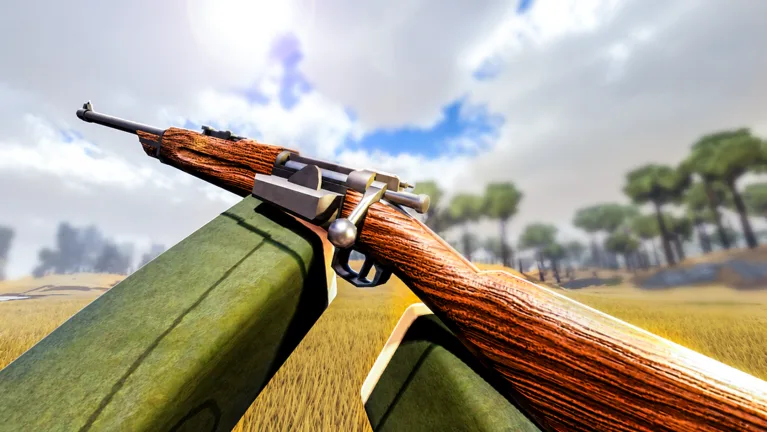
Smooth controls separate players who die in the spawn trench from players who hold the objective. ENTRENCHED WW1 uses standard Roblox movement on top of class weapons, Engineer building menus, Medic tools, and Officer strike interfaces. This guide covers PC, mobile, and console layouts, explains what each action does in trench combat, and links to class-specific guides once you know the basics.
If you have not finished onboarding, read Getting Started first, then return here before queuing competitive Frontline servers.
PC keyboard and mouse
Most veteran ENTRENCHED players use keyboard and mouse on Roblox PC. Defaults follow common Roblox FPS habits with ENTRENCHED-specific tool keys layered on top.
| Action | Default input | Combat notes |
|---|---|---|
| Move | W A S D | Strafe in trenches; never backpedal in the open. |
| Sprint | Shift (hold) | Short bursts between cover; sustained sprint exposes you on ridges. |
| Jump / vault | Space | Use to cross low wire sections where allowed; jumping over sandbags exposes your silhouette. |
| Aim / look | Mouse | Low sensitivity often wins long-range Recon duels. |
| Fire | Left mouse | Tap fire at range; controlled bursts in trenches. |
| Reload | R | Reload behind cover, not in doorways. |
| Swap weapon / tool | Number keys 1–9 | Know your Medic bandage versus rifle slot before contact. |
| Interact | E | Revives, resupply crates, and objectives. |
| Grenade | G (typical) | Clear wire clusters and dugouts; watch friendly fire in tight trenches. |
| Scoreboard | Tab (hold) | Check team composition — missing Medics or Support loses Frontline rounds. |
| Shift lock | Shift or Roblox toggle | Helps keyboard players track targets while moving. |
Roblox allows remapping under Settings → Keyboard. Keep movement on WASD and avoid binding critical tools to keys you cannot reach while holding sprint.
Engineer and Officer menus on PC
Engineers open the build menu to place sandbags, wire, and defensive pieces. The exact key depends on your Roblox and in-game bindings — commonly a dedicated key or UI button near the hotbar. Open the menu only when covered; standing still in no-man’s land while browsing pieces gets you sniped. Full placement rules live in Build Fortifications.
Officers access artillery call tools after reaching rank 5. Strike UI uses map targeting separate from your rifle. Learn those controls in Call Artillery so you do not fire friendly trenches by accident.
Mobile touch controls
Roblox mobile overlays a virtual joystick, jump button, and context actions. ENTRENCHED’s dense trenches make mobile harder but playable.
- Drag the look zone to aim; many players enable Roblox auto-fire only after they understand friendly positions — stray shots alert defenders.
- Pinch sensitivity in Roblox settings until you can track Recon glint without overshooting.
- Use the jump button sparingly; mobile jump is obvious and slow to recover.
- Class swap via spawn menu before leaving respawn; swapping mid-trench on touch is clumsy.
- Build and medic tools appear as extra icons when equipped; memorize their screen position like PC number keys.
Mobile players benefit enormously from Medic and Support roles that reward positioning over flick aim. Assault and Flamer on touch demand practice — see Tier List for mode-specific class advice.
Console controller layout
Console Roblox maps movement to the left stick, camera to the right stick, fire to triggers, and tools to face buttons. Exact layouts vary by platform and user remaps.
- Left stick — movement along trench floors; push slowly when clearing corners.
- Right stick — aim; lower sensitivity helps Recon and Rifleman duels.
- RT / R2 — fire; use trigger discipline in friendly trenches.
- Face buttons — weapon and tool swaps depending on bind; set Engineer build to a comfortable button before matches.
- D-pad or bumpers — grenades and emotes per your Roblox profile; confirm grenade bind before Assault rushes.
Controller players should use headset or platform chat for Officer callouts and artillery warnings — audio cues matter when UI text is hard to read on TV displays.
Class-specific control priorities
Each of the nine classes stresses different inputs:
- Rifleman / Skirmisher / Assault — Aim, reload, and grenade timing. Master peeking sandbag corners in Frontline.
- Medic — Weapon swap speed to bandage and syringe faster than enemies finish downs. See Heal and Revive.
- Support — Resupply interaction keys while staying in cover; ammo wins long defenses.
- Engineer — Build menu navigation under fire; practice in Build Fortifications.
- Recon — Steady aim and patience; movement inputs should be minimal once positioned.
- Flamer — Close-range tracking and fuel management; avoid sprinting into your own choke.
- Officer — Split attention between rifle and artillery UI; rank 5 required.
Detailed loadouts and synergies sit in Players.
Settings that help in trench maps
Adjust Roblox client settings before grinding ranks:
- Graphics: Lower shadows and effects if frame rate dips during artillery — stutter gets you killed in open craters.
- Sensitivity: Separate look sensitivity for scoped versus hip fire if Roblox profile allows; consistency beats speed at Recon ranges.
- Audio: Turn up effects to hear footsteps and shell inbound cues; Officer players rely on callouts too.
- Language / chat: Enable team chat where available; ENTRENCHED coordination improves win rates in Conquest and Domination.
Common control mistakes
New players lose hours to fixable habits:
- Reloading in doorways — Defenders pre-aim choke points; reload fully behind sandbags.
- Forgetting tool slot order — Medics die swapping to syringe one key too late.
- Building with menu open in the open — Engineers should plan pieces before exposing themselves.
- Calling artillery without map awareness — Officers must confirm friendly positions; read Call Artillery.
- Chasing kills off objective — Controls work best when inputs serve mode goals from Frontline, not kill/death ratio.
Related wiki pages
- Getting Started — Teams, classes, and first-match checklist.
- Build Fortifications — Engineer placement under pressure.
- Scripts — Third-party automation risks on Roblox; legitimate skill beats macros.
- Updates — Patch notes if default binds or UI change.
- Wiki — Official place page and community Discords for bind discussions.
There are no promo codes that change controls or unlock hidden keybinds — see Codes for the official stance. Muscle memory from this guide plus deliberate class practice on Tier List recommended classes will feel better than any external shortcut.
Frequently Asked Questions
Quick answers for trench warfare and class play.
Can I rebind keys in ENTRENCHED WW1?
ENTRENCHED runs on Roblox, so most movement and camera binds are changed through Roblox Settings → Keyboard. In-game class tools may use fixed hotbar slots — test in a private server before ranked play.
Are ENTRENCHED controls the same on mobile and PC?
No. PC uses keyboard and mouse, mobile uses touch overlays, and console uses controllers. Core actions exist on all platforms but layout and precision differ.
Which key opens the Engineer build menu?
The build menu appears when Engineer is equipped and you activate the build tool from your hotbar or UI. Exact keys vary by platform; equip Engineer in a safe spawn and note the on-screen prompt before fighting.
How do Officers call artillery on controller or mobile?
Officers use a separate strike interface from normal weapons. The Call Artillery guide walks through targeting; use a layout you can access quickly without freezing in no-man's land.